Creating Ad Blocks
Learn how to create, configure, and place ad blocks on your WordPress site.
What is an Ad Block?
An Ad Block is a container for displaying ads on your website. Each block can be configured with:
- Ad size (e.g., 300x250, 728x90)
- Ad format (Display, Sticky, Interstitial, etc.)
- Linked GAM ad unit
- Custom targeting (key values)
Ad Formats
NoAdCode supports multiple ad formats for different use cases:
Display
Standard banner ads that appear in designated areas of your page.
Best for: Sidebar, in-content, header, footer placements
View configuration
Sticky
Ads that remain visible as users scroll the page.
Best for: Bottom of screen, sidebar that follows scroll
View configuration
Interstitial
PROFull-screen ads that appear between page loads or on scroll.
Best for: High-impact moments, between article pages
View configuration
Video
PROVideo ad player with pre-roll, mid-roll, or outstream ads.
Best for: In-content video placements, standalone player
View configuration
Cube
PRO3D rotating cube showing multiple ad creatives.
Best for: High-engagement areas, premium placements
View configuration
Code
Custom HTML/JavaScript for third-party ad networks.
Best for: Integrating non-GAM ad providers
Common Ad Sizes
| Size | Name | Best For |
|---|---|---|
300x250 | Medium Rectangle | Sidebar, in-content |
728x90 | Leaderboard | Header, between content |
160x600 | Wide Skyscraper | Sidebar |
320x50 | Mobile Banner | Mobile header/footer |
300x600 | Half Page | Sidebar |
970x250 | Billboard | Header, premium placement |
320x100 | Large Mobile Banner | Mobile |
336x280 | Large Rectangle | In-content |
Creating Your First Ad Block
Access Ad Blocks
Click NoAdCode → Ad Blocks in your WordPress admin. You'll see a list of existing blocks (empty on first use).
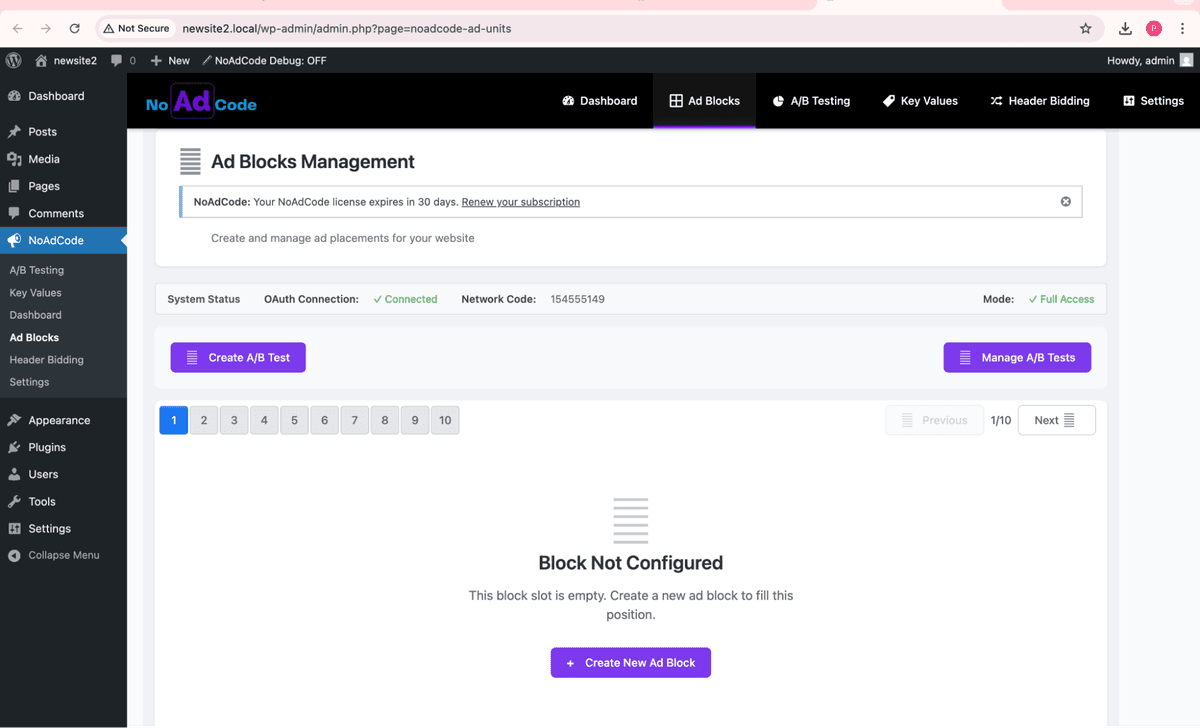
Create New Block
Click Create New Block or Add New. Enter a descriptive name (e.g., "Homepage Sidebar 300x250").
Tip: Use descriptive names that include placement and size for easy identification later.
Configure Ad Size
Select the ad size from the dropdown. This should match the size configured in your GAM ad unit.
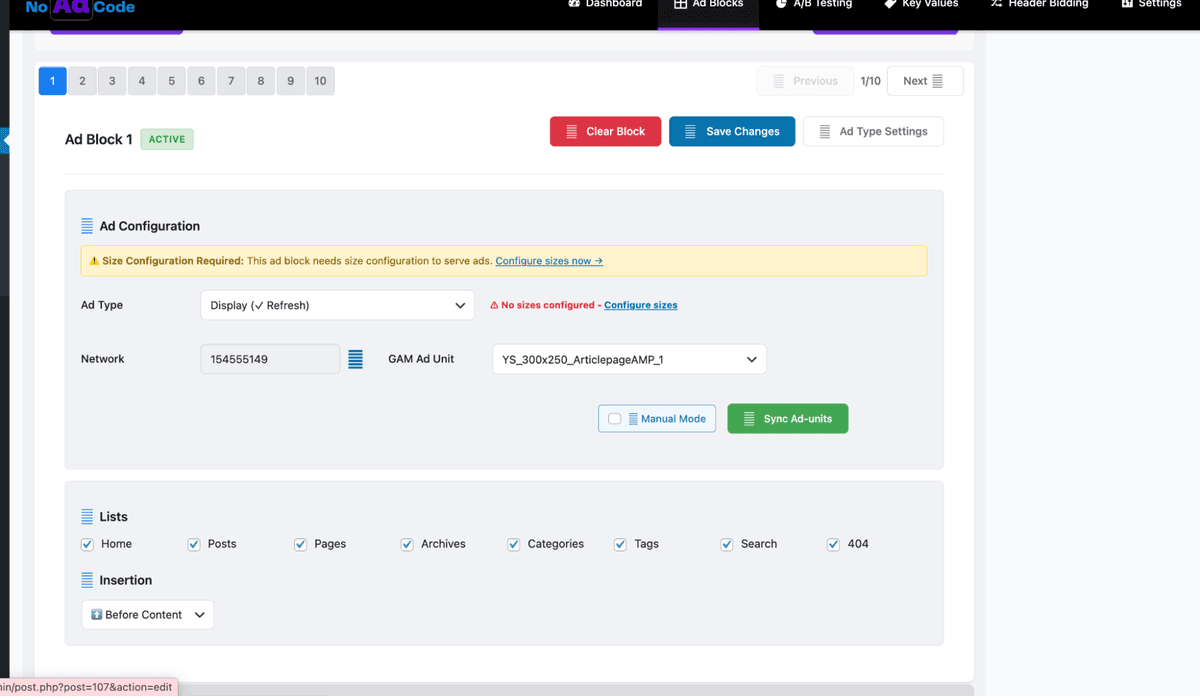
Select Ad Format
Choose the format type: Display, Sticky, Interstitial, Video, Cube, or Code. Each format has different placement options.
Link to GAM Ad Unit
Select an existing GAM ad unit from the dropdown, or click Create Newto automatically create one in GAM.
Note: NoAdCode auto-fetches your ad units from GAM. If you don't see your units, make sure your connection is active.
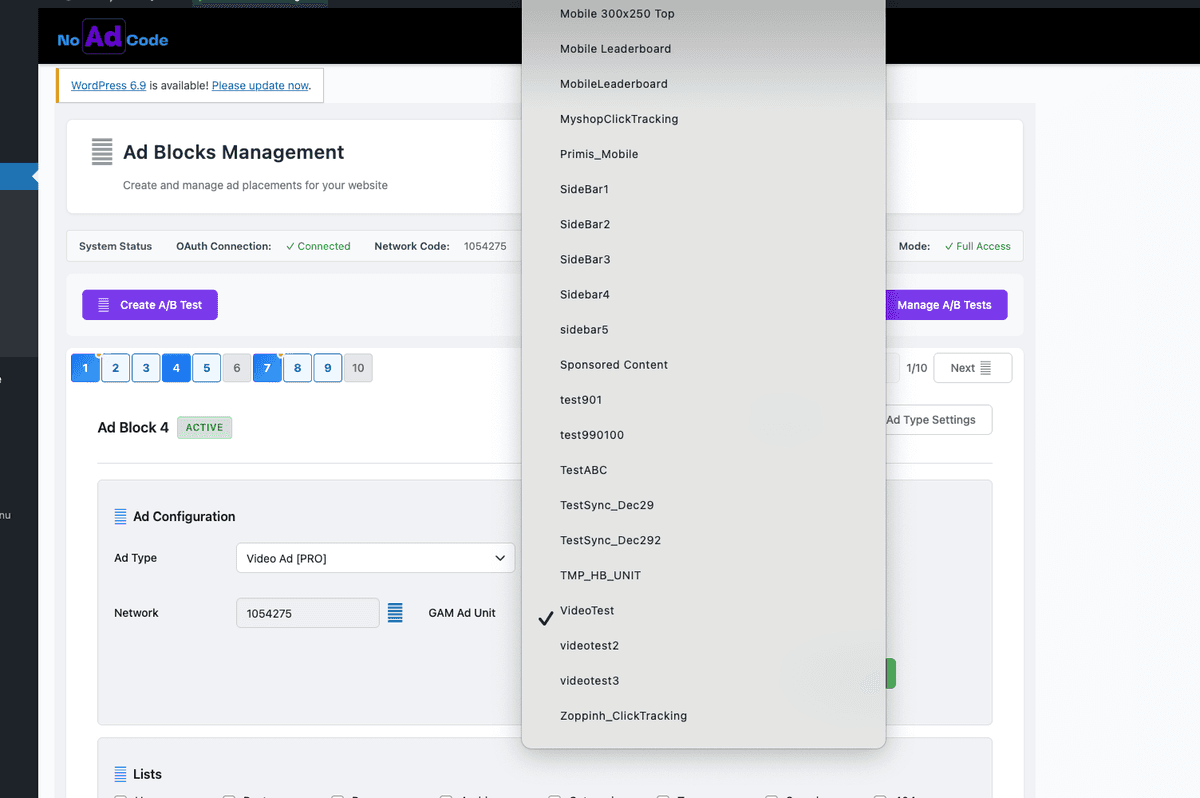
Save Your Block
Click Save or Publish. Your block is now ready to place on your site.
Format-Specific Configuration
Each ad format has unique configuration options. Here are examples of different format settings:
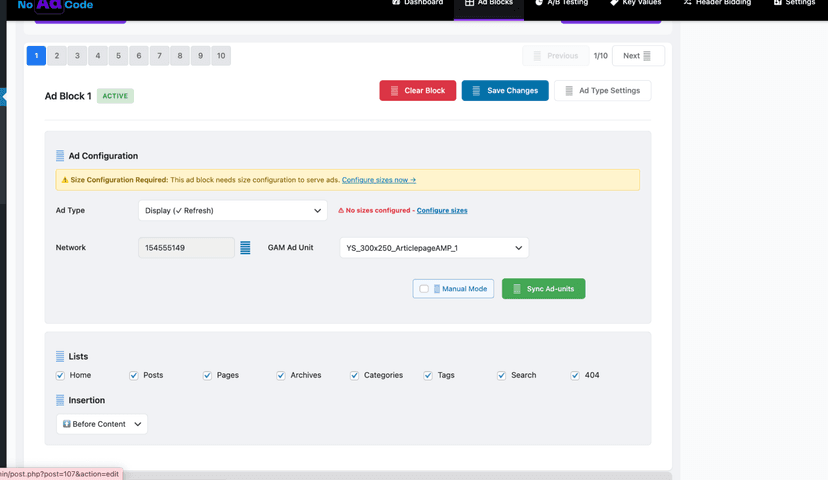
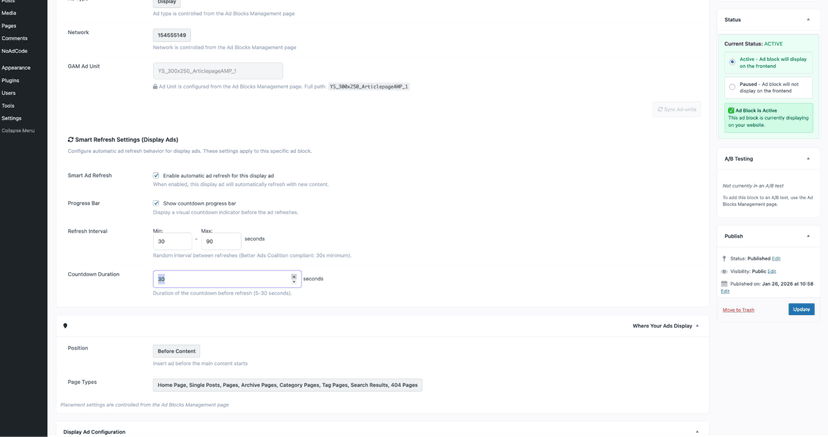
Display Ads
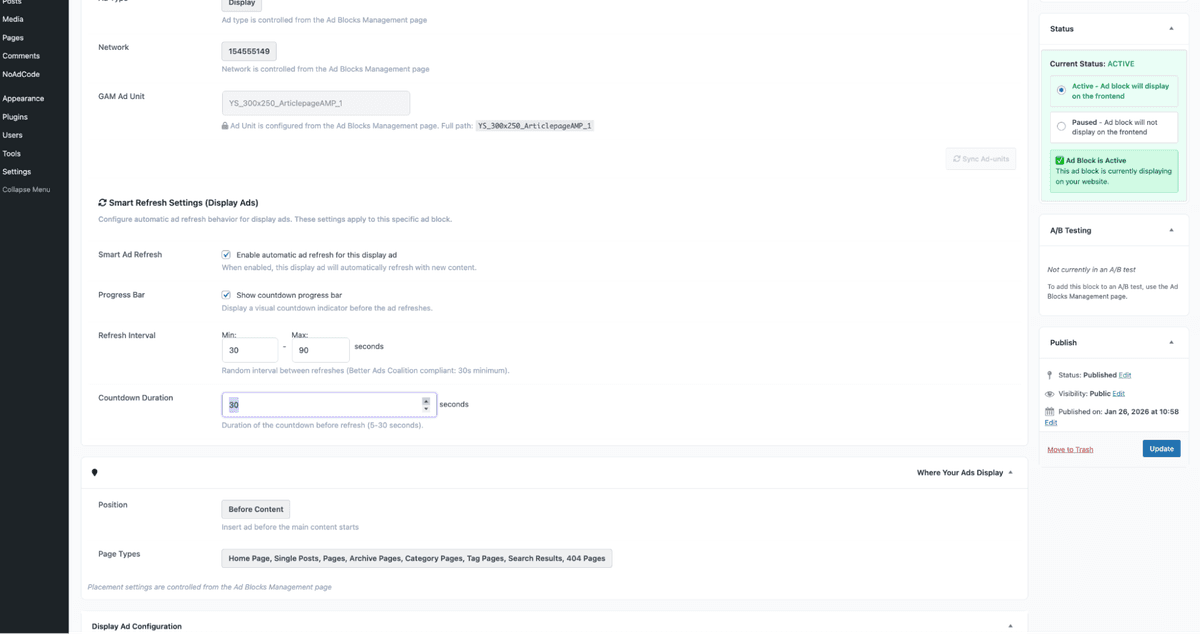
Configure ad size, GAM ad unit, page targeting, insertion position, and Smart Refresh settings for automatic ad refresh.
Sticky Ads (Anchor)
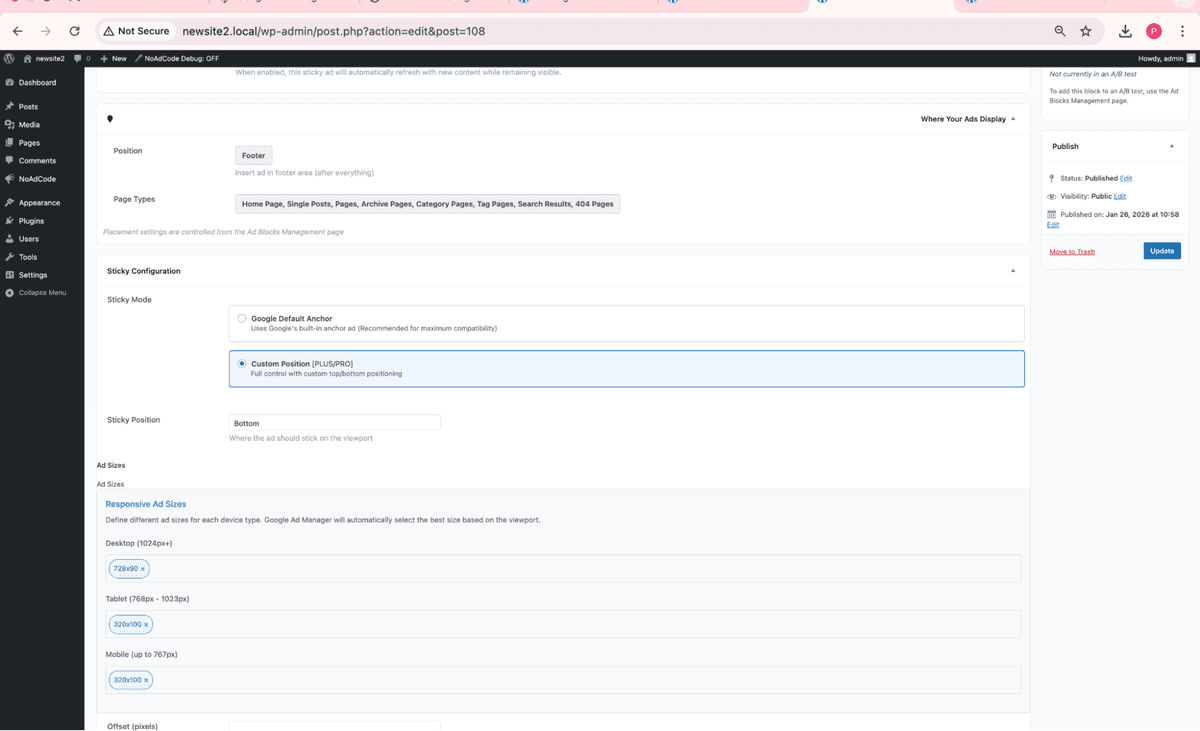
NoAdCode offers two sticky ad modes to choose from:
Google Anchor
Google's default anchor ad implementation. Simple setup with standard GAM behavior.
Custom StickyHeader Bidding
NoAdCode's custom implementation with Header Bidding support for higher CPMs.
Tip: Not sure which to use? Run an A/B test to compare performance between modes.
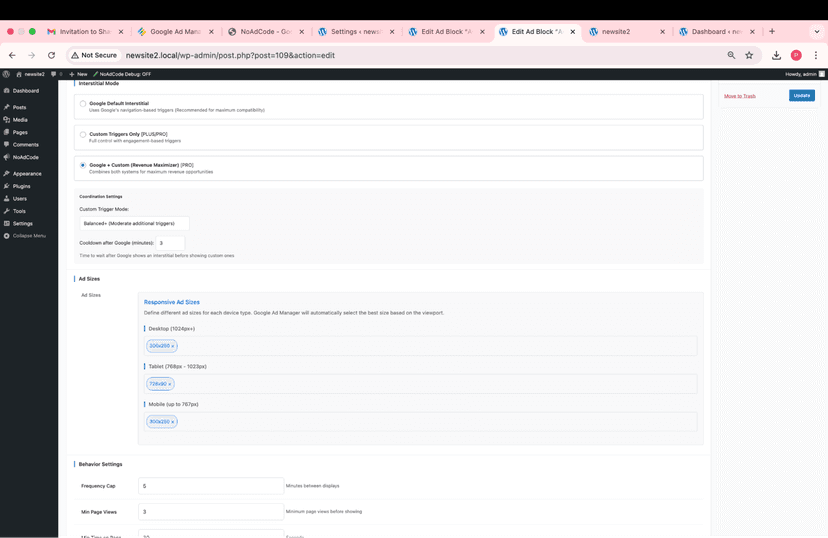
Interstitial AdsPRO
NoAdCode offers three interstitial modes to maximize your revenue:
Google Interstitial
Google's default full-screen ad. Simple setup with standard behavior.
Custom InterstitialHB
NoAdCode's custom implementation with Header Bidding support.
Google + CustomRecommended
Best of both worlds. Combines Google's reach with Header Bidding for maximum revenue.
Tip: The Google + Custom mode is recommended for publishers looking to maximize revenue. You can also run an A/B test to compare modes.
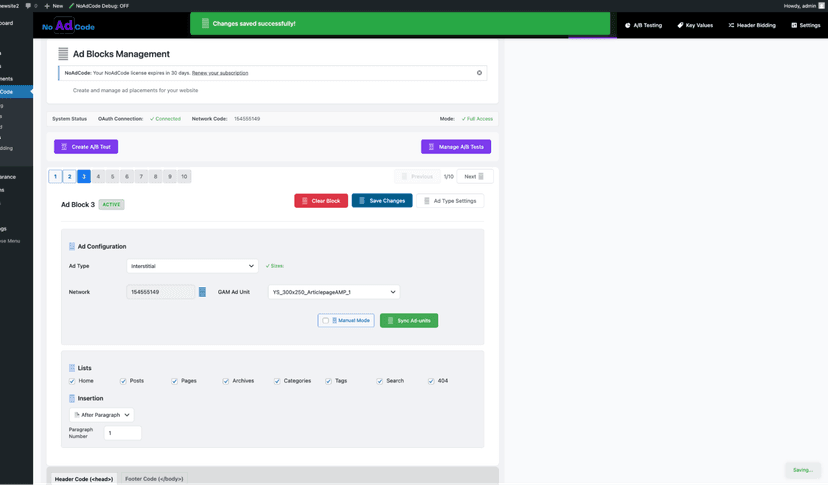
Configure trigger conditions (scroll depth, time on page), frequency capping, and close delay:
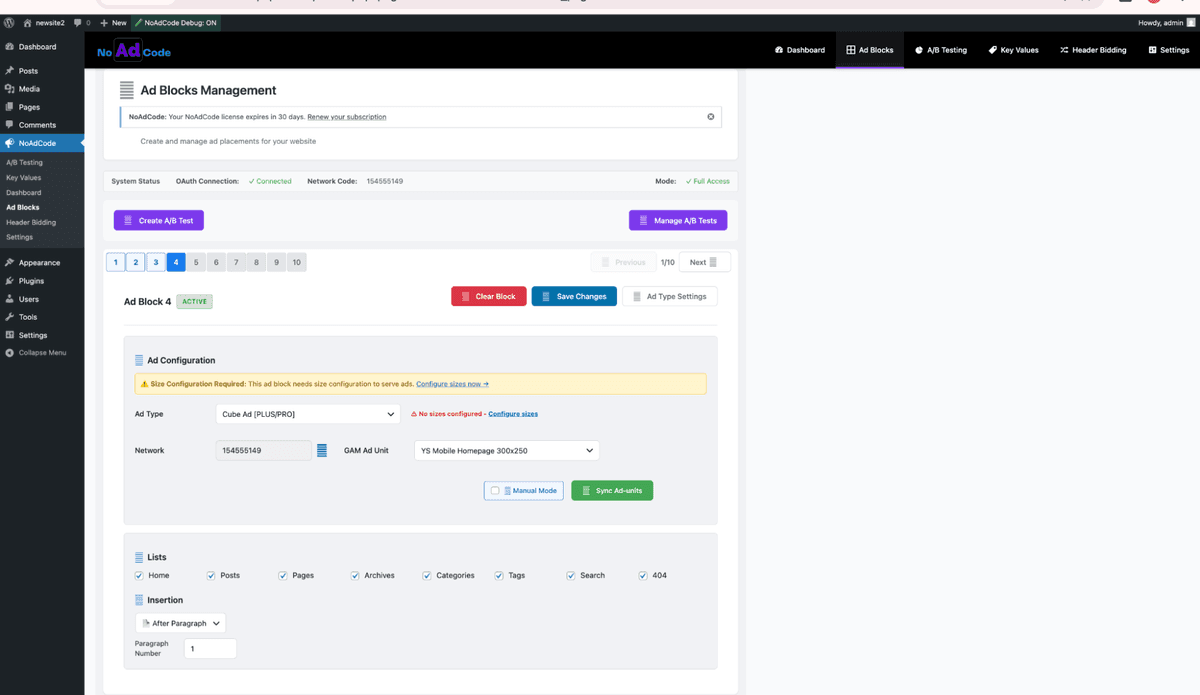
Cube AdsPRO
Configure rotation speed, number of faces, and interaction triggers.
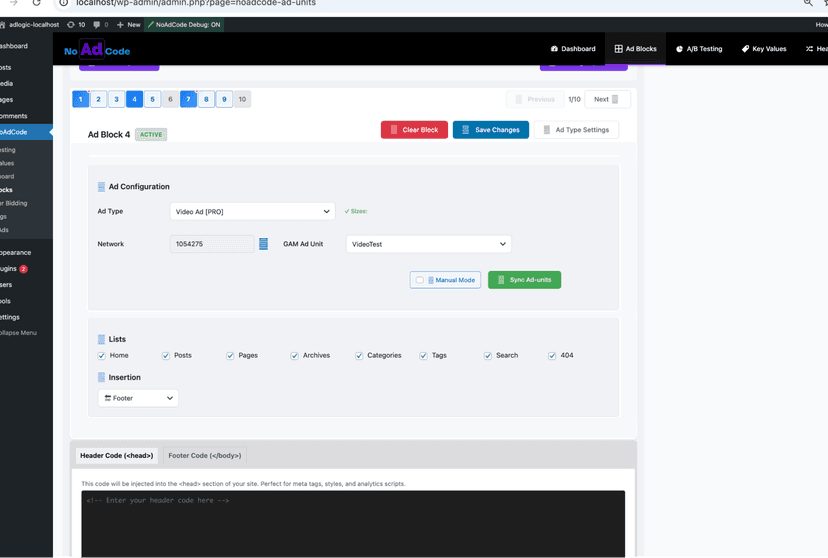
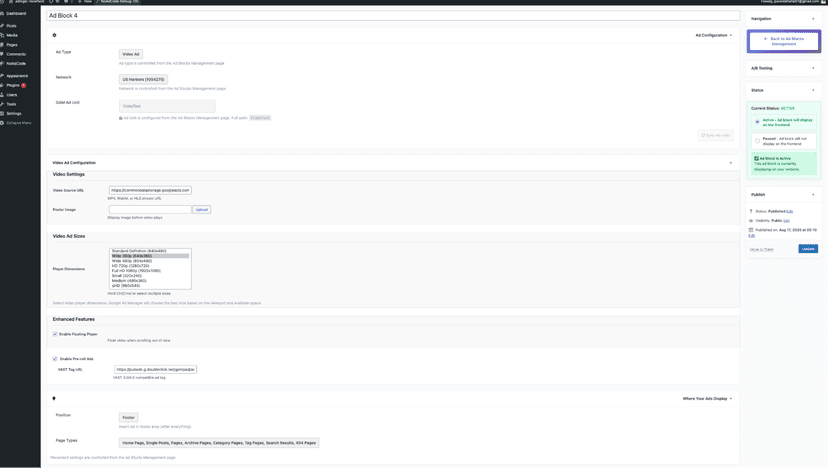
Video AdsPRO
Video ads require two key components to display properly:
1. Content Source URL
The URL of your video content that will play in the video player.
2. VAST Tag
Your VAST (Video Ad Serving Template) tag URL from GAM for serving video ads.
Configure video player size, autoplay behavior, and VAST/VPAID settings:
How Ads Appear on Your Site
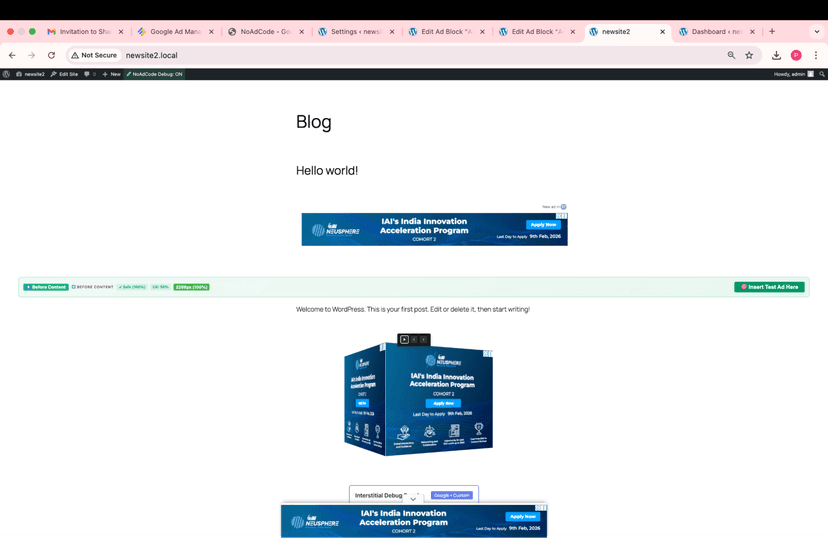
Here's how each ad format looks when displayed on your website:
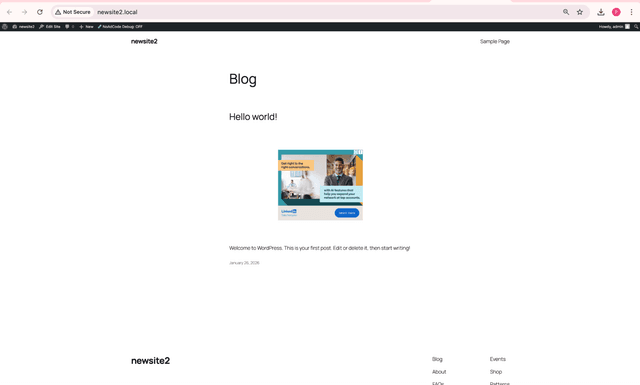
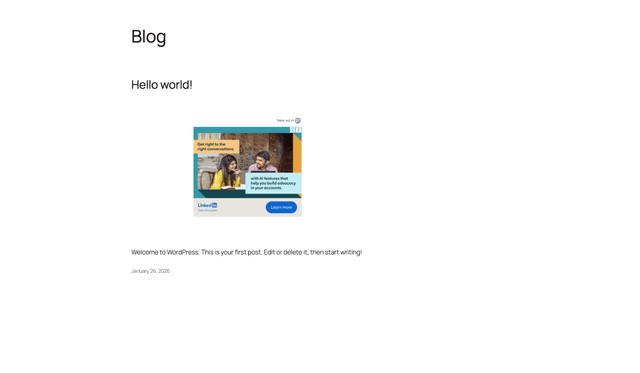
Display Ad
Standard banner ads that appear in designated areas of your page. Most versatile format for any placement.
- Supports all standard IAB sizes (300x250, 728x90, etc.)
- Smart Refresh automatically rotates ads for more impressions
- Default refresh interval: 30-90 seconds (configurable)
- Viewability-aware: only refreshes when ad is in viewport
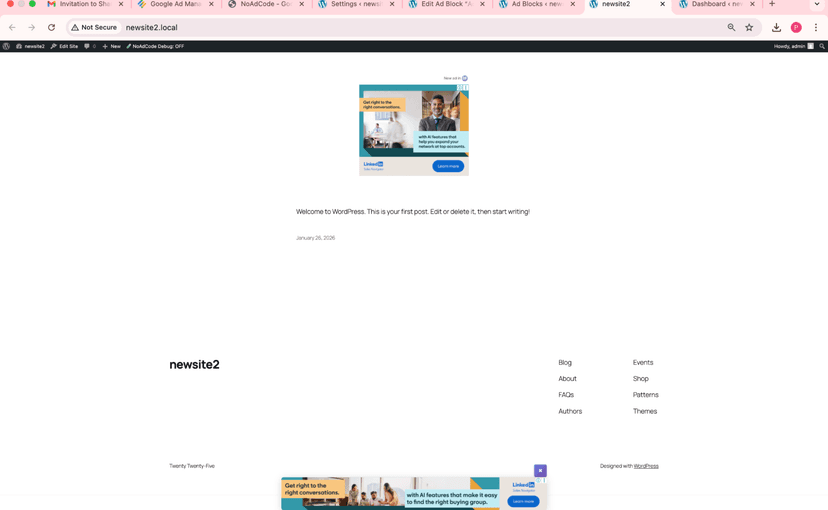
Sticky Ad (Anchor)
Ads that remain fixed at the top or bottom of the screen as users scroll. High visibility format.
- Position: Top or Bottom of viewport
- Close button appears after configurable delay (default: 5s)
- Custom Sticky mode supports Header Bidding
- Respects Better Ads Standards for user experience
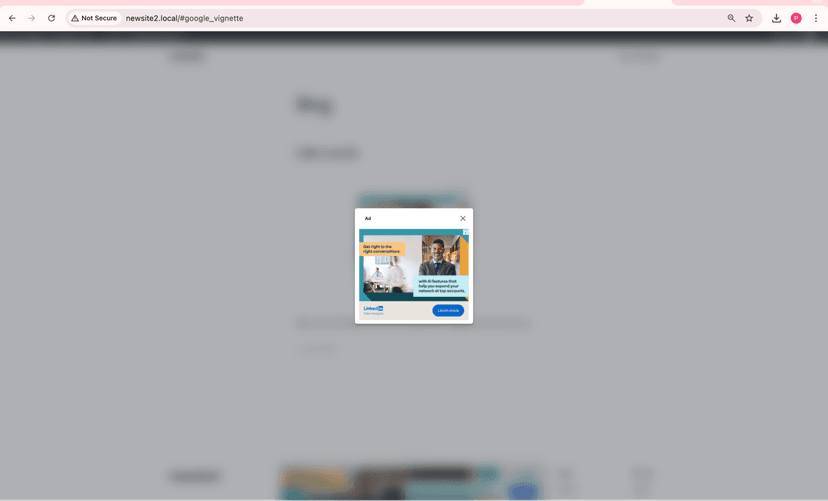
Interstitial AdPRO
Full-screen ads that appear at natural transition points. Highest impact format for premium inventory.
- Triggers: Scroll depth, time on page, or page navigation
- Frequency cap: Limit impressions per user (default: 1 per session)
- Close delay: 5 seconds (Google compliant)
- Google + Custom mode recommended for max revenue
Cube AdPRO
Interactive 3D rotating cube displaying multiple ad creatives. Eye-catching format for premium placements.
- 4 faces for rotating ad creatives
- Auto-rotation interval is configurable
- User controls: Pause rotation and flip through sides manually
- Higher engagement rates than standard display
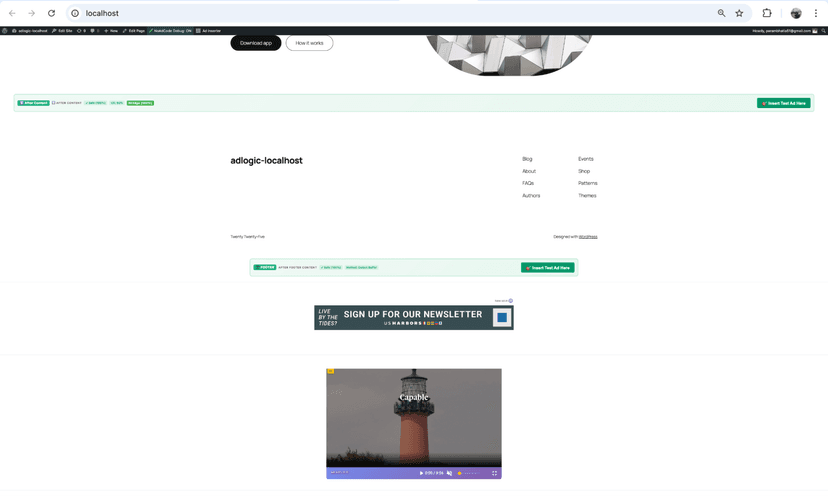
Video AdPRO
Video player with pre-roll, mid-roll, or outstream ads. Highest CPM format for video content.
- Requires: Content URL + VAST tag from GAM
- Supports VAST/VPAID for programmatic video
- Muted autoplay by default; users click to unmute/play
- Skip button after 5 seconds (configurable)
Placing Ad Blocks on Your Site
Shortcode
Copy and paste into any post, page, or widget.
[adlogic id="123"]Or use the slug: [adlogic slug="homepage-sidebar"]
Gutenberg Block
Use the NoAdCode block in the WordPress editor.
- 1. Edit any page/post
- 2. Click "+" to add a block
- 3. Search "NoAdCode"
- 4. Select your ad block
Widget Area
Add to any widget area in your theme.
- 1. Go to Appearance → Widgets
- 2. Add "Custom HTML" widget
- 3. Paste the shortcode
Managing Ad Blocks
Editing
Click the block name to edit. Changes apply immediately after saving.
Duplicating
Hover and click "Duplicate" to create a copy with all settings.
Deleting
Hover and click "Delete". This removes the block from all placements.
Next Steps
Now that you know how to create ad blocks, learn about testing and optimization.