Key Values (Custom Targeting)
PROPass custom targeting parameters to Google Ad Manager for more precise ad delivery.
What are Key Values?
Key Values are custom targeting parameters that you send to Google Ad Manager with each ad request. They allow advertisers to target specific audiences and help you command higher CPMs for targeted inventory.
How It Works
category = sports
With every ad request
Sports ads shown on sports pages
Standard Keys (Predefined)
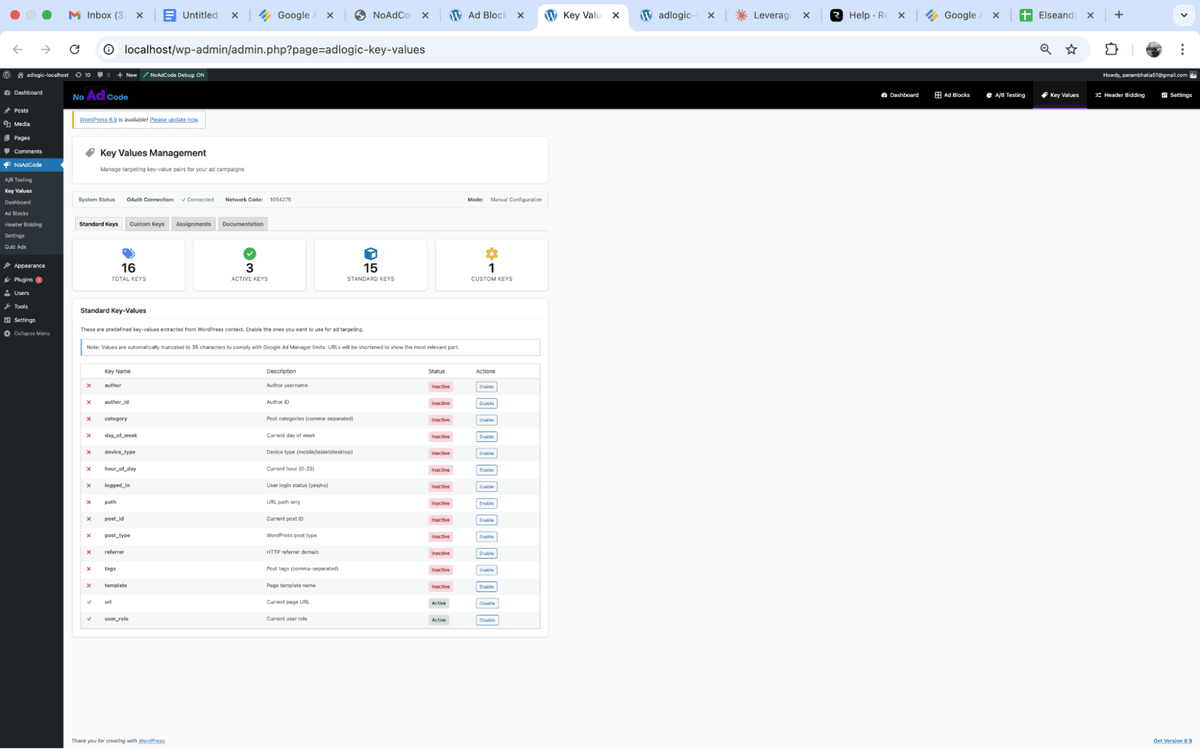
Standard Keys are predefined keys that you can use readily without any setup. NoAdCode automatically extracts data from your pages for these 15 built-in keys:
| Key | Description | Example Value |
|---|---|---|
url | Current page URL | https://example.com/post |
path | URL path only | /post/my-article |
category | Post categories | news,sports |
tags | Post tags | football,champions-league |
post_type | WordPress post type | post, page, product |
post_id | Current post ID | 123 |
author | Author username | john_doe |
author_id | Author ID | 5 |
template | Page template | full-width |
device_type | User device | mobile, tablet, desktop |
referrer | Traffic source | google.com |
day_of_week | Current day | monday |
hour_of_day | Current hour (0-23) | 14 |
logged_in | User login status | true, false |
user_role | WordPress user role | subscriber, admin |
Enabling Key Values
Access Key Values
Click NoAdCode → Key Values in your WordPress admin.
Enable Standard Keys
In the Standard Keys tab, toggle ON the keys you want to use. Enabled keys will be sent to GAM with each ad request automatically.
Popular Keys: category, tags, device_type, and post_type are commonly used for targeting.
Custom Key Values
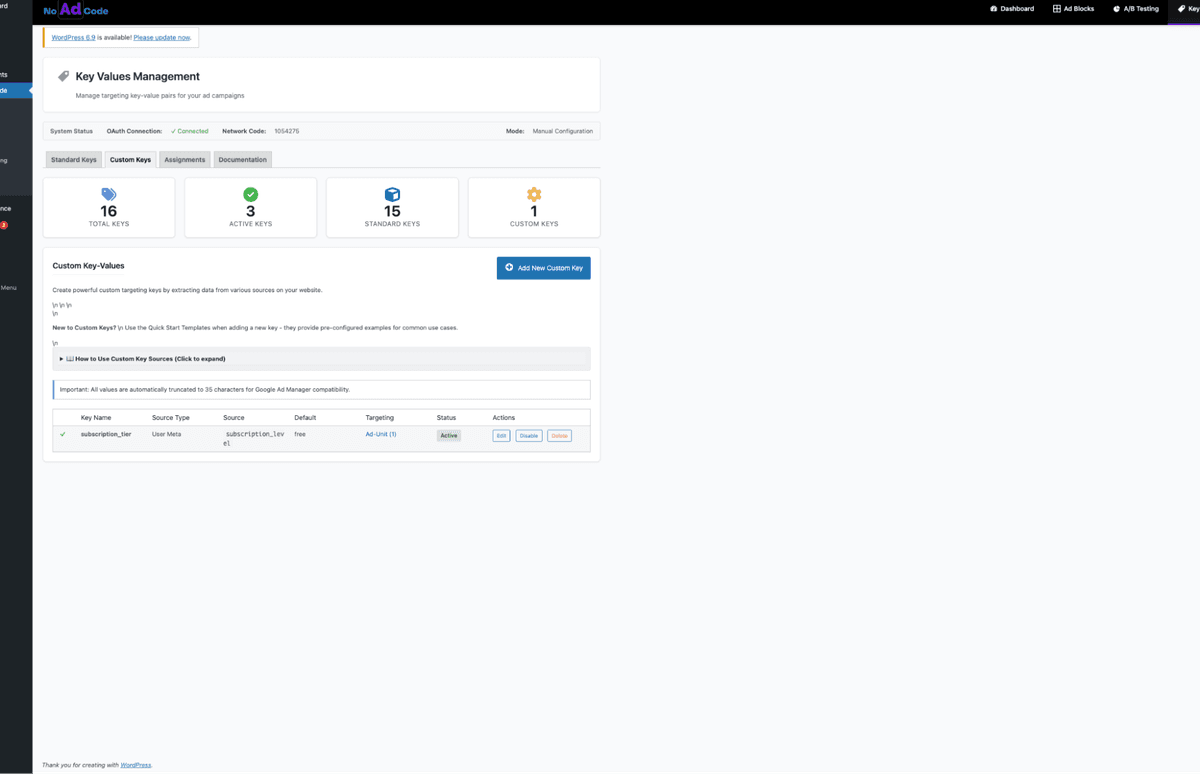
Custom Keys are keys you create yourself from various data sources on your website. Unlike Standard Keys, you define exactly what data to extract and how to use it.
Ad-Unit Targeting: Custom Keys can be targeted to specific Ad-units, allowing you to send different key values to different ad placements.
Creating a Custom Key
Click "Add New Custom Key"
In the Custom Keys tab, click the Add New Custom Key button. Enter a key name (e.g., subscription_tier).
Choose Source Type
Select where the key value comes from:
User Meta
Extract from WordPress user metadata
Post Meta
Extract from post/page custom fields
Cookie
Read from browser cookies
URL Parameter
Extract from query strings
Set Targeting (Optional)
Choose which ad-units this key should be sent to. You can target:
- • All Ad-units: Key is sent with every ad request
- • Specific Ad-units: Key is only sent to selected ad placements
Save and Activate
Save your custom key. Toggle it to Active and it will be sent with ad requests based on your configuration.
Common Use Cases
Content-Based Targeting
Use category and tags to show relevant ads.
Example:
category=sports → Sports equipment adsDevice Targeting
Use device_type for device-specific campaigns.
Example:
device_type=mobile → App download adsAudience Targeting
Use logged_in and user_role for member targeting.
Example:
user_role=subscriber → Premium upgrade adsTime-Based Targeting
Use day_of_week and hour_of_day for timing.
Example:
hour_of_day=12 → Lunch restaurant adsSetting Up in Google Ad Manager
After enabling keys in NoAdCode, you need to configure them in GAM to use for targeting:
In Google Ad Manager:
- Go to Inventory → Key-values
- Click New key-value
- Enter the same key name as in NoAdCode (e.g., "category")
- Add the expected values
- Use these keys when creating line items for targeting
Important: Key names in NoAdCode and GAM must match exactly. GAM is case-sensitive, so "Category" and "category" are different keys.
Maximize Your Revenue
Key Values work best with header bidding. Learn how to integrate Prebid.js next.