Troubleshooting Guide
Solutions for common issues with connection, ad display, and configuration.
Using Debug Mode
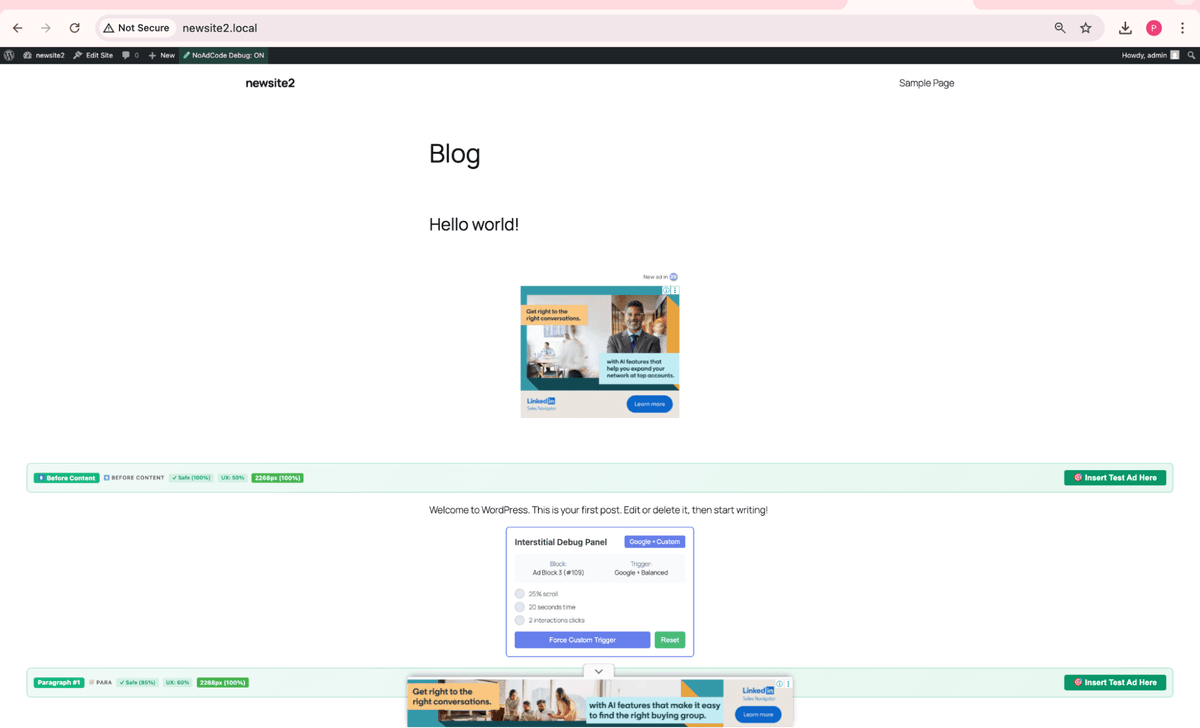
Before troubleshooting, enable Debug Mode to see detailed information about ad loading:
1
Open your site's frontend while logged into WordPress as an admin
2
In the WordPress toolbar at the top, click NoAdCode Debug: ON
3
The page will reload with debug overlays visible on all ads
4
Press F12 to open browser console and look for messages starting with [NoAdCode]
Debug Mode Shows:
- • Ad insertion points found on the page
- • GPT slot definitions and targeting
- • API requests and responses
- • Errors and warnings
Connection Issues
"Disconnected" Status
Possible Causes
- •Google OAuth token expired
- •GAM access revoked
- •License expired or invalid
Solutions
- Click "Run Setup Wizard" to reconnect
- Verify your Google account still has GAM access
- Check your NoAdCode license status at noadcode.com
"No GAM Networks Found"
Possible Causes
- •Google account lacks GAM admin access
- •Signed in with wrong Google account
- •GAM network permissions changed
Solutions
- Verify you have admin access to a GAM network
- Try signing in with a different Google account
- Ask your GAM admin to add your account
"License Not Found"
Possible Causes
- •Email mismatch between Google and NoAdCode account
- •License expired
- •License not activated
Solutions
- Sign in with the same email used for your Pro purchase
- Check license status at noadcode.com/dashboard
- Contact parambhatia51@noadcode.com for assistance
Ad Display Issues
Ads Not Showing
Possible Causes
- •Ad block not published/enabled
- •Shortcode placed incorrectly
- •GAM ad unit inactive or misconfigured
- •Ad blockers preventing display
Solutions
- Verify the ad block is published in NoAdCode
- Check shortcode syntax: [adlogic id="123"]
- Verify the linked GAM ad unit is active
- Disable ad blockers and test again
- Check browser console for JavaScript errors
Wrong Ad Size Displayed
Possible Causes
- •Size mismatch between GAM and NoAdCode
- •Responsive sizing not configured
- •Container CSS overriding ad dimensions
Solutions
- Verify ad size in NoAdCode matches GAM ad unit
- Check responsive size mappings
- Inspect the ad container CSS for width/height overrides
Ads Show on Wrong Pages
Possible Causes
- •Shortcode placed in global template
- •Block placed in widget area shown everywhere
- •No conditional logic configured
Solutions
- Check where the shortcode is placed
- Use widget visibility controls if available
- Add page-specific logic to ad placement
Performance Issues
Slow Page Load
Possible Causes
- •Too many ad blocks on page
- •Header bidding timeout too high
- •Large ad creatives
Solutions
- Reduce number of ads per page
- Lower header bidding timeout to 1000-1500ms
- Enable lazy loading for below-fold ads
- Use async loading for ad scripts
Ads Not Refreshing
Possible Causes
- •Smart refresh disabled
- •Viewability threshold not met
- •Page focus lost (tab in background)
Solutions
- Enable Smart Ad Refresh in settings
- Verify ads are in viewport before expecting refresh
- Check that the browser tab is active
Quick Diagnostic Checklist
Before Contacting Support
- Plugin is updated to latest version
- OAuth connection shows "Connected"
- Ad block is published, not draft
- GAM ad unit is active
- Tested without ad blocker
- Checked browser console for errors
Information to Include
When contacting support, please include:
- NoAdCode plugin version
- WordPress version
- PHP version
- Browser console errors (if any)
- Steps to reproduce the issue
- Screenshots of the problem
Still Need Help?
If you've tried the solutions above and still have issues, our support team is ready to help.