Installing NoAdCode
Follow these steps to install and activate NoAdCode on your WordPress site.
New to NoAdCode?
Learn what NoAdCode does, its features, and how it can increase your ad revenue.
Read About NoAdCodePro Access Request Flow
For users upgrading to Pro
To unlock Pro features, follow these steps on noadcode.com:
Click "Download Pro"
From your dashboard, click the Pro option. A modal will open asking you to:
- • Choose Connection Method: Select "Google Direct Connect" (Recommended)
- • Enter Your Domain: e.g., example.com (without https://)
- • Click "Submit Request"
Request Pending
Your dashboard will show "Request Pending" status. You'll receive a confirmation email. Our team reviews requests within 24-48 hours.
Receive Approval Email
Once approved, you'll receive an email: "Your Pro Access is Approved!"
Click "Complete Payment Now" or return to your dashboard.
Complete Payment via Razorpay
Your dashboard will now show "Request Approved!" with payment options:
Annual Plan
₹12,500/year
Save ₹9,100!
Monthly Plan
₹1,800/month
Pay via UPI, Google Pay, or Credit/Debit Card
Download Pro Plugin
After payment, you'll see: "Subscription activated!"
You can now download the Pro plugin from your dashboard. Your license is automatically linked to your account.
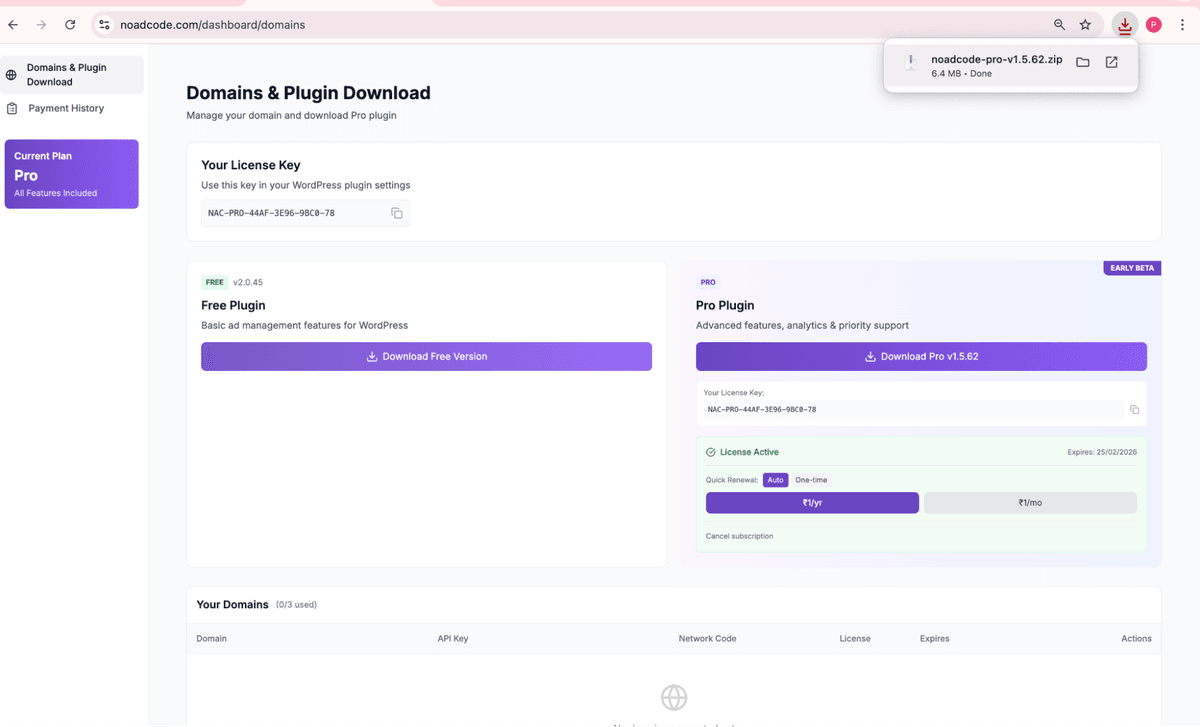
Free Plugin Users
Go to noadcode.com, sign in with your Google account, and click Download Free Version from the Domains & Plugin Download page. No approval required.
WordPress Installation
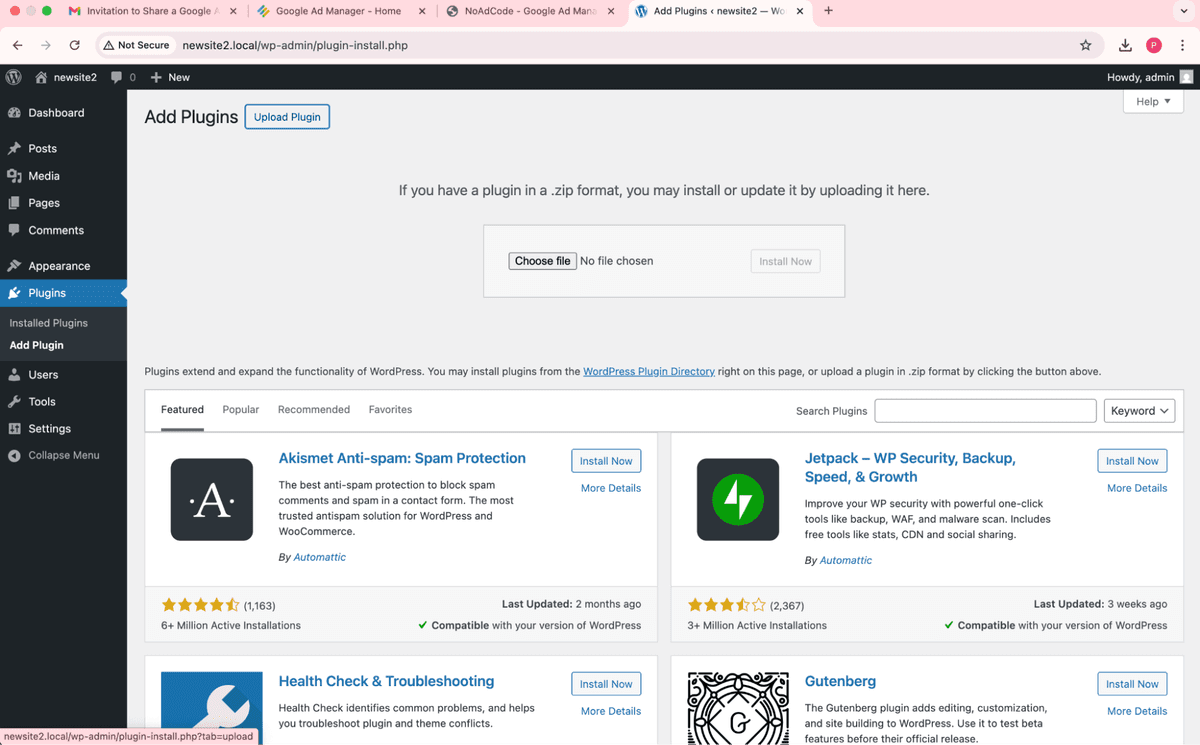
Upload to WordPress
In your WordPress admin panel, go to Plugins → Add New → Upload Plugin. Select the downloaded ZIP file and click Install Now.
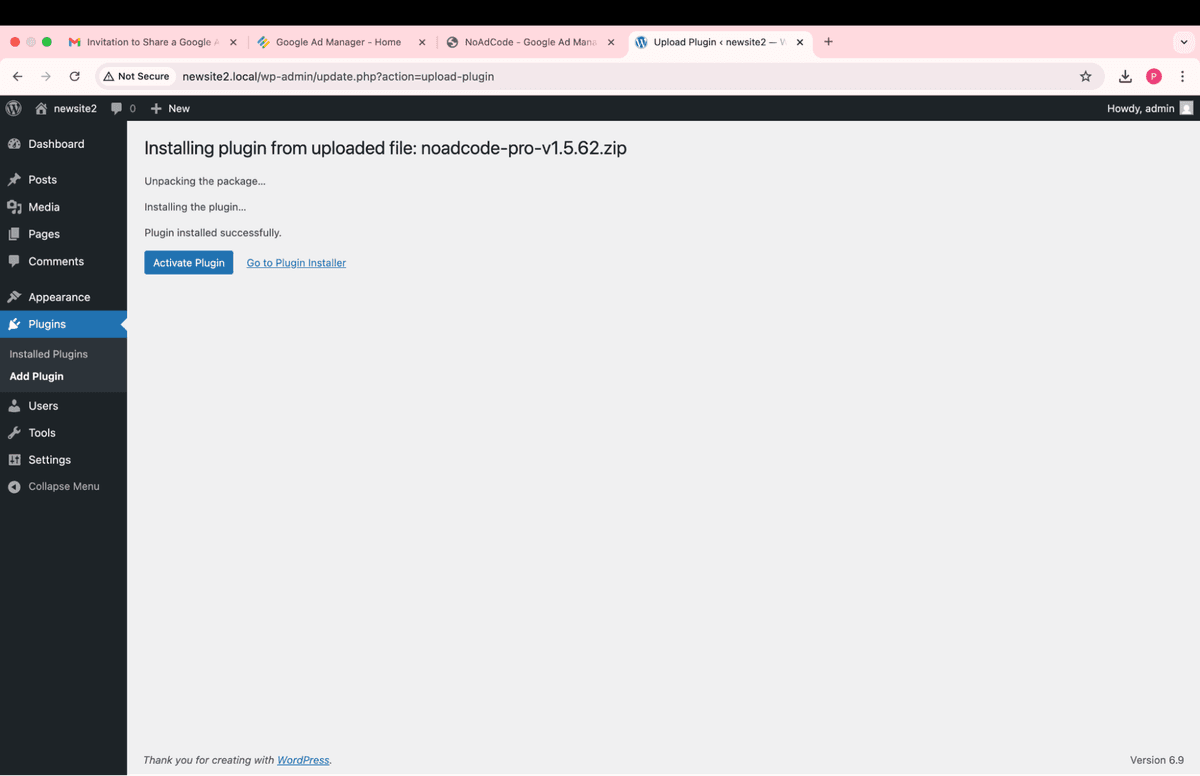
Activate the Plugin
After installation completes, click Activate Plugin. You'll see NoAdCode appear in your WordPress admin sidebar.
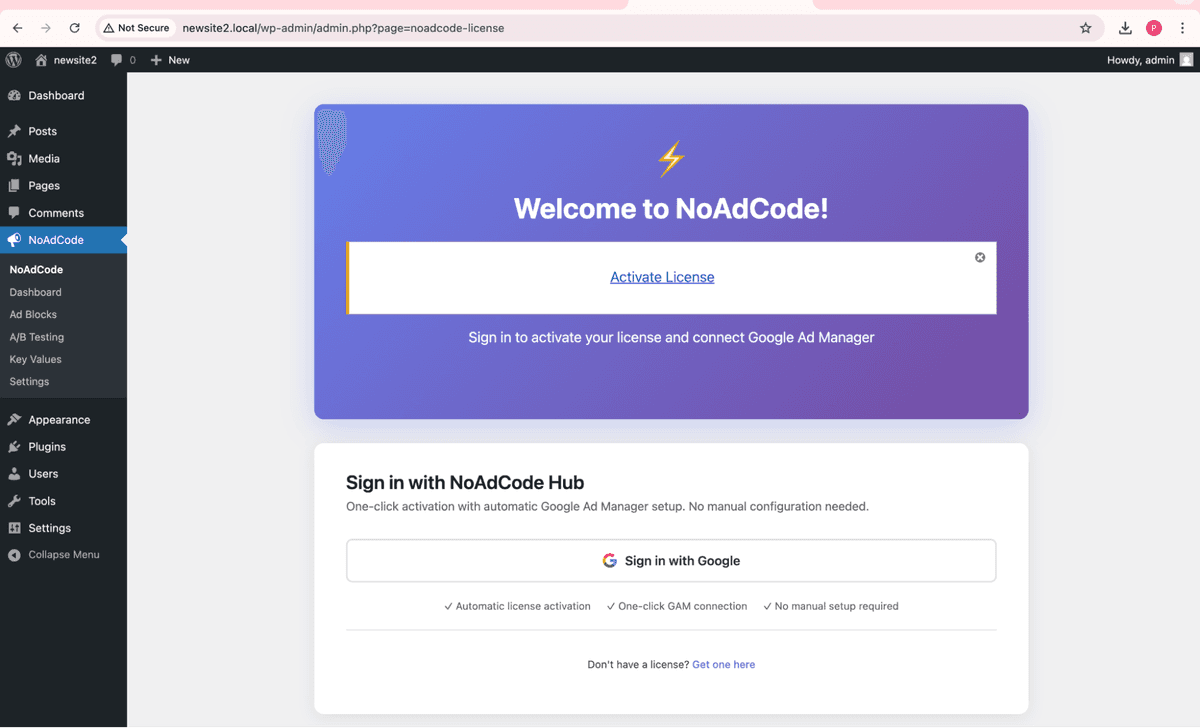
Connect to Google Ad Manager
Click NoAdCode in the sidebar. You'll see a welcome screen. Use Sign in with Google or Google Direct Connect to link your Google Ad Manager account.
Installation Complete!
Once connected to Google Ad Manager, you're ready to create your first ad block.
Next Steps
Once installed, connect your Google Ad Manager account to start creating ad blocks.